Introduction
Roku devices have transformed the way we access entertainment, offering a simple route to stream countless shows and movies right on your TV. For both tech-savvy users and newcomers, setting up Roku is user-friendly. This guide will walk you through connecting your Roku to your TV and optimizing your streaming setup.
Understanding Roku and Its Variants
Roku comes in different models to cater to various viewing needs. Knowing these options will help you choose the perfect Roku for your setup.
Different Roku Models and Their Features
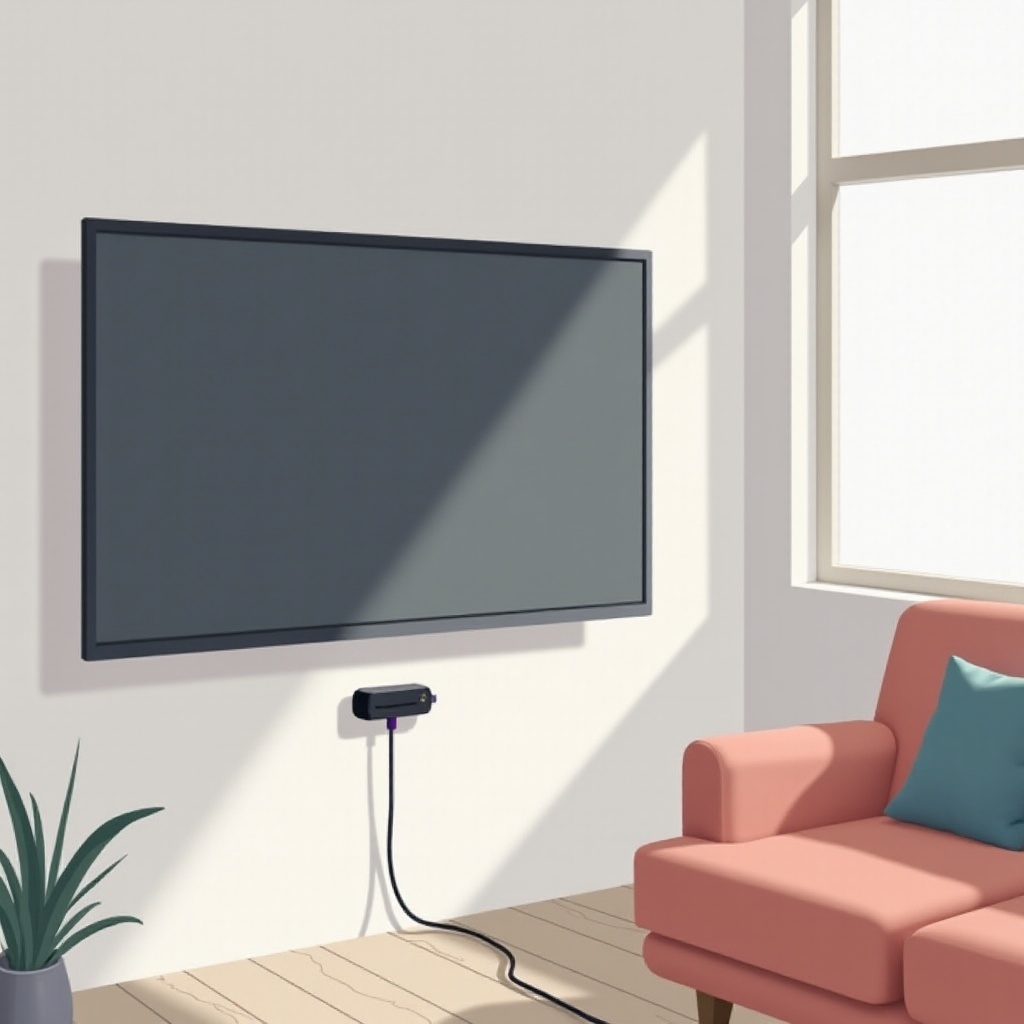
Roku provides several models like the basic Roku Express, ideal for starters, and the high-performance Roku Ultra, which offers features like a voice remote and premium audio. For those seeking portability, the Roku Streaming Stick+ is an excellent choice, plugging directly into your TV’s HDMI port.
Choosing the Right Roku for Your TV
Your TV’s capability should influence your Roku choice. For TVs supporting 4K and HDR, the Roku Ultra or Streaming Stick+ can provide outstanding visual quality. If high definition is sufficient, the Roku Express represents a cost-effective option, fitting standard HD TVs perfectly.
Preparing for the Connection
Before connecting, ensure you have all necessary tools and confirm your TV’s compatibility.
Necessary Equipment for Setup
To start, gather your Roku device, HDMI cable, power adapter, and a stable internet connection. Most Roku packages include these accessories, making the setup process straightforward.
Ensuring TV Compatibility
Modern TVs with HDMI ports are generally compatible with Roku. However, older TV models may require additional connections like RCA cables. It’s essential to check your TV’s input options against your Roku model to prevent issues during setup.
Step-by-Step Guide to Connecting Roku to TV
Connecting your Roku to a TV involves a few clear steps described below, allowing for a smooth streaming start.
Connecting with an HDMI Cable
- Identify HDMI Port: Locate an available HDMI port on your HDTV, usually on the back or side of the panel.
- Plug In Roku: Insert the HDMI cable’s one end into the Roku device and the other end into your TV’s HDMI port.
- Select HDMI Source: Power up your TV and choose the HDMI input source that matches your connection.
Connecting via RCA for Older TVs
- Use Composite Cable: If your TV lacks HDMI ports, use a composite cable set.
- Match Color Ports: Connect the RCA cables between your TV’s ports and the Roku, matching colors.
- Set Input Source: Turn on your TV and select the input that aligns with your connected cables.
Powering Up Your Roku Device
- Connect to Power: Insert the power adapter into your Roku device and plug it into a wall outlet.
- Activate Remote: Insert batteries into your Roku remote to ensure it’s ready for use.
Setting Up and Activating Roku
After your physical setup, it is time to configure network settings and activate your device to unlock streaming.
Connecting to the Internet
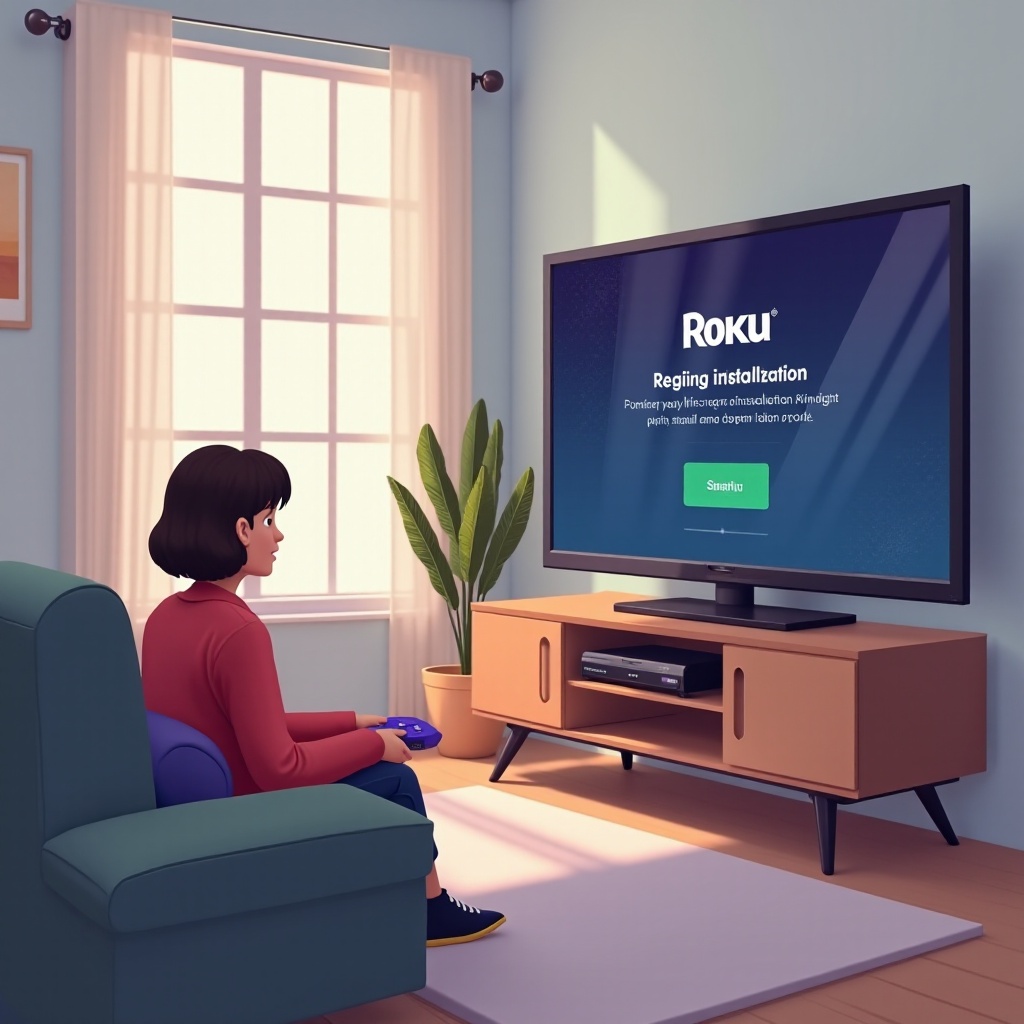
- Network Access: Use the on-screen Roku menu to open network settings.
- Choose Connection Type: Decide on a wired or wireless connection for your Roku.
- Input Wi-Fi Details: If opting for a wireless connection, enter your Wi-Fi credentials.
Creating and Linking a Roku Account
- Roku Account Online: Access the account creation section on the Roku website.
- Setup an Account: If new, provide necessary details to create a Roku account.
- Device Activation: Follow instructions to link your Roku device to the account for full functionality.
Optimizing Streaming Quality
After activation, tweaking your settings can greatly improve your streaming experience.
Adjusting Roku and TV Settings
- Set Resolution: Adjust the Roku settings to match your TV’s maximum resolution.
- Configure Sound: Modify your audio settings to fit both the TV’s speakers or external audio systems.
Using Wired or Wireless Connection
- Wired Connection: Offers more stable streaming; consider for ultra-high-definition content.
- Wireless Ease: Provides flexibility; Ensure your router and Roku are within close range for the best results.
Troubleshooting Common Issues
Understanding and fixing common connection or streaming issues ensures consistent enjoyment from your Roku.
No Display Problems
- Double-check Connections: Ensure all cables are securely attached and have no damage.
- Source Selection: Double-check if the correct input source is set on your TV.
Connectivity and Streaming Issues
- Reevaluate Network Settings: Re-enter your internet credentials for connectivity assurance.
- Restart Devices: Power cycle both Roku and the router to resolve occasional disconnections.
Conclusion
Connecting Roku to your TV opens endless streaming prospects at your fingertips. By following this guide closely, you ensure a hassle-free Roku setup and an optimized viewing experience. For advanced queries, Roku’s support team stands ready to assist.
Frequently Asked Questions
Does Roku work with any TV?
Yes, Roku works with any TV that has an HDMI or composite port for older models.
Can I use Roku without Wi-Fi?
No, Roku requires an internet connection via Wi-Fi or Ethernet for streaming.
How often should I update my Roku device?
Roku typically updates automatically, but manually check for updates regularly to maintain performance.