Introduction
Experiencing your Xbox One not displaying on the TV can be an annoyance, especially during peak gaming excitement. However, this guide is your go-to resource for troubleshooting and solving this issue efficiently. From primary fixes like checking cables to more intricate adjustments involving settings and firmware, we unravel everything you need to know. Whether it’s a simple fix or something more sophisticated, let us guide you in restoring your gaming setup swiftly.
Common Causes of Xbox One Display Issues
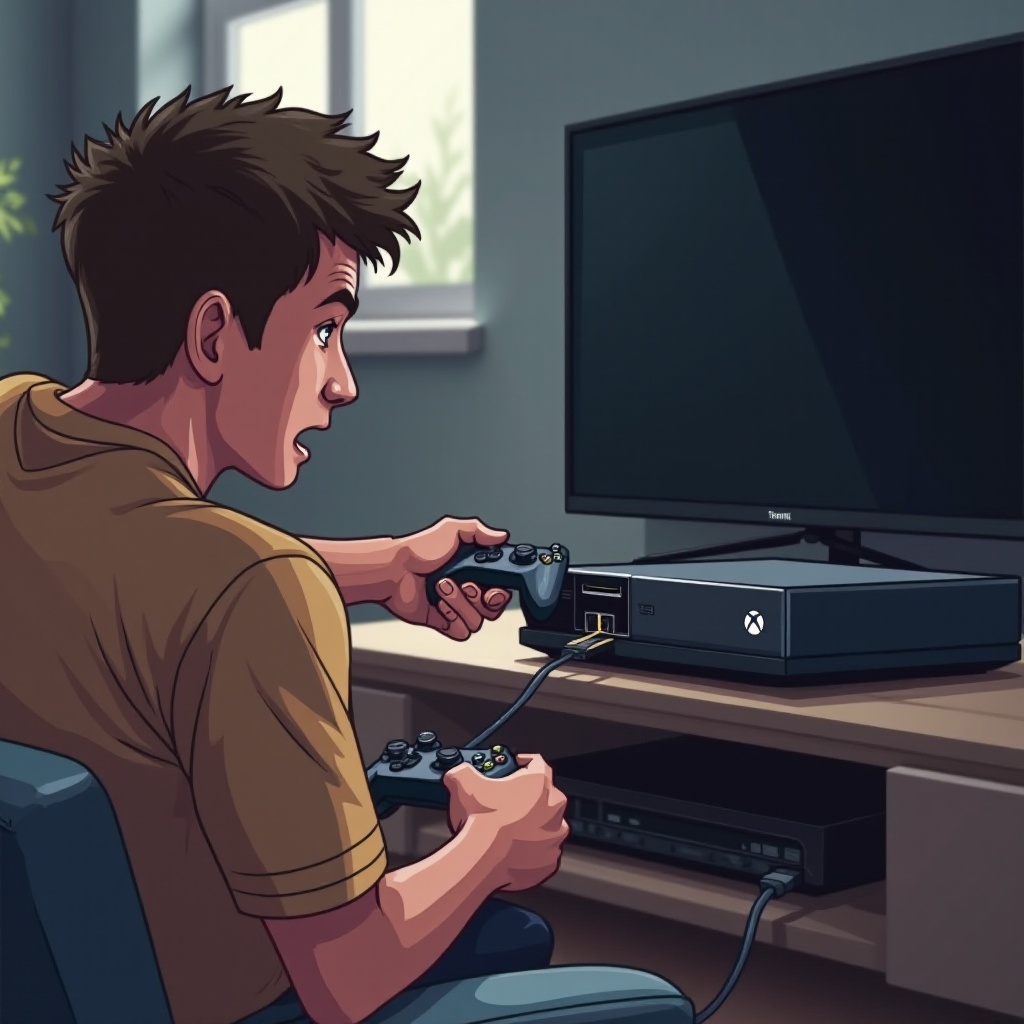
Identifying why your Xbox One fails to show up on TV is crucial for successful troubleshooting. Various factors can contribute to this glitch, such as faulty HDMI cables or incorrect TV input settings. Perhaps your TV is simply set to the wrong input, or it might be deeper rooted within the Xbox, possibly involving display settings or dated firmware. By pinpointing these typical issues, you enable a smoother resolution process.
Troubleshooting Steps to Fix Xbox One Not Showing on TV
Let’s walk through the fundamental troubleshooting steps essential for diagnosing and rectifying the Xbox One display problem.
Check HDMI Cable and Connections
- Carefully examine the HDMI cable for physical damages. Opt for another cable if it’s compromised.
- Ensure the HDMI connections between your console and TV are firm.
- Test alternate HDMI ports on your TV to rule out specific port errors.
Verify TV Input Settings
- Use your TV remote to verify and, if necessary, correct the HDMI input channel.
- Cycle through all input sources to ensure you’re using the right one.
Power Cycle Your Xbox One
- Completely turn off your console by holding the power button down for 10 seconds.
- Disconnect the power cable once shut down.
- Wait a minute before reconnecting the power, then turn your Xbox back on.
Adjust Xbox Display Settings
- Start your Xbox One in low-resolution mode by pressing the power and eject buttons until the additional power-up sound.
- Navigate to Settings > Display & sound, then adjust the resolution to complement your TV’s optimum setting.
Test with a Different Monitor or TV
- Hook your Xbox One up to another screen using a new HDMI cable.
- Observe if the issue persists on a different display.
Advanced Solutions for Persistent Display Problems
For complex problems that linger, advanced troubleshooting steps may be required.
Update Xbox and TV Firmware
- Regularly update your Xbox system under Settings > System > Updates & downloads.
- Consult your TV’s manual or manufacturer’s site to carry out firmware updates if necessary.
Reset Display Settings to Default
- Head into Settings > Display & sound.
- Select ‘Video output’ and switch ‘TV resolution’ to automatic, ensuring optimal default performance.
Consider Hardware Repairs or Replacement
Persistent problems may suggest hardware malfunctions. It’s advisable to contact support or a reliable repair service to assess potential hardware issues.
Tips to Prevent Future Xbox Display Issues
Once issues are resolved, implementing preventive measures is essential for avoiding recurrences.
Regular Maintenance
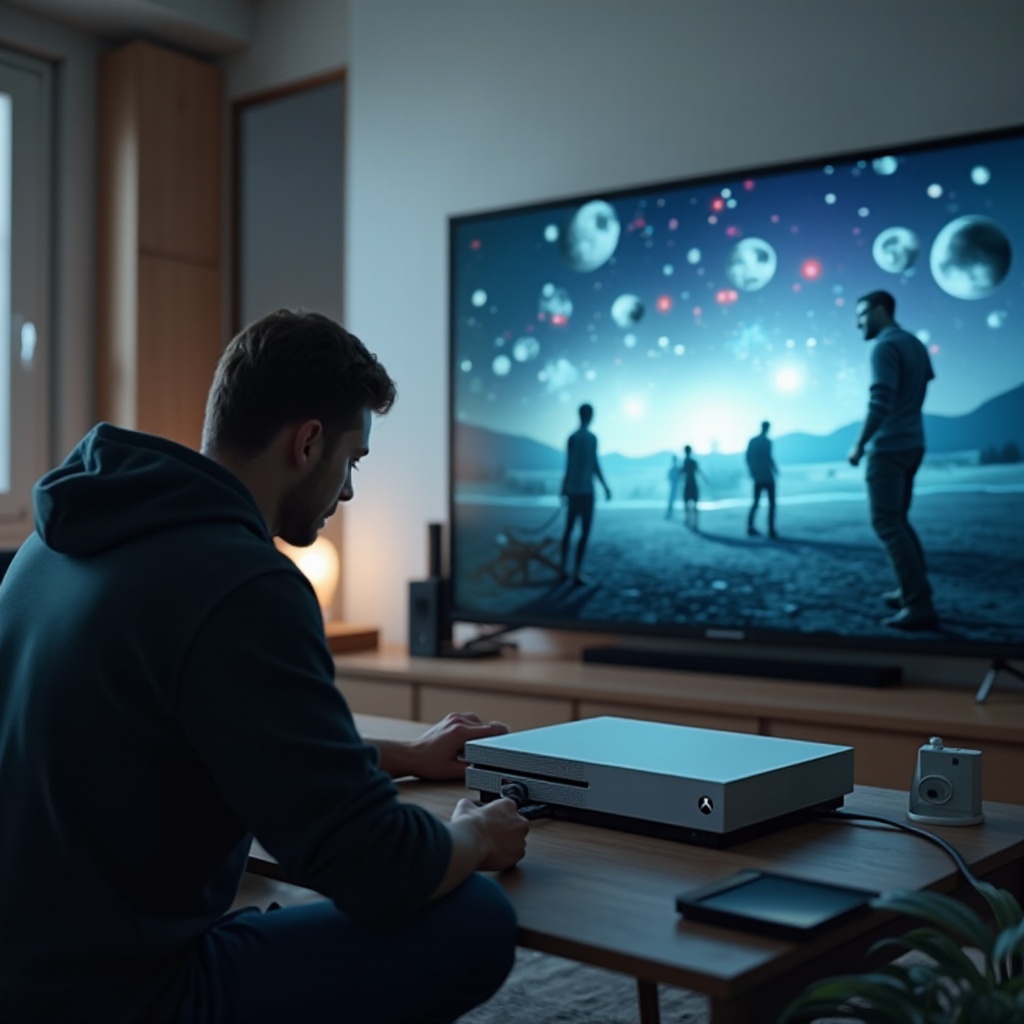
- Clean HDMI ports with care to remove dust. Ensure both TV and Xbox ports remain clear.
- Conduct regular cable inspections for signs of damage.
Use High-Quality Cables and Accessories
- Invest in high-grade HDMI cables and reliable accessories to guarantee stable and extended connections.
Conclusion
Issues with your Xbox One not registering on your TV can disrupt your gaming experience. However, with a keen understanding and the resolution techniques shared here, most issues are addressable at home. Equip yourself with knowledge and valuable troubleshooting skills to ensure uninterrupted gaming.
Frequently Asked Questions
Why is my Xbox One not displaying on the TV despite trying all troubleshooting steps?
Persistent issues may indicate a hardware problem. Consider consulting an expert for repair.
Can an outdated firmware cause my Xbox One to not show on TV?
Yes, both Xbox and TV firmware updates are crucial for avoiding compatibility and display issues.
What should I do if my Xbox display intermittently flickers or goes blank?
Check cable connections, try a different cable, update firmware, and consider hardware inspection if issues persist.