Introduction
Tracking notifications on your iPhone keep you informed about app activities involving your personal data and location. These alerts are essential for maintaining privacy and control over your digital interactions. Understanding their function empowers you to secure your personal information effectively. This guide will cover what these notifications are and how you can manage them to protect your privacy and enhance your device usage.
Understanding Tracking Notifications
Tracking notifications are alerts that inform you when apps access your data or location. The primary purpose is to increase transparency, enabling you to make informed privacy choices when interacting with apps. These notifications appear as banners or alerts on your iPhone, signaling the activity of specific apps with which you’ve shared permissions.
When you receive a tracking notification, it includes details such as the app’s name and the specific action it performed. This level of detail aids you in understanding each app’s activity and potential impact on your privacy.
Types of Tracking Notifications on iPhone
Your device offers various tracking notifications, each serving a unique function to ensure you stay informed.
-
App-Based Notifications: These appear when apps access data such as your contacts, camera, or microphone, reminding you of the permissions you have granted.
-
Location Tracking Notifications: These alerts notify you whenever an app accesses your geographical location, allowing you to review and adjust app permissions based on your comfort level.
-
Privacy and Security Notifications: These notifications are designed to alert you of security concerns, such as unauthorized login attempts or data breaches involving saved passwords.
Understanding these types allows for better customization and control over what alerts you receive, seamlessly connecting to how you manage them.
How to Manage Tracking Notifications
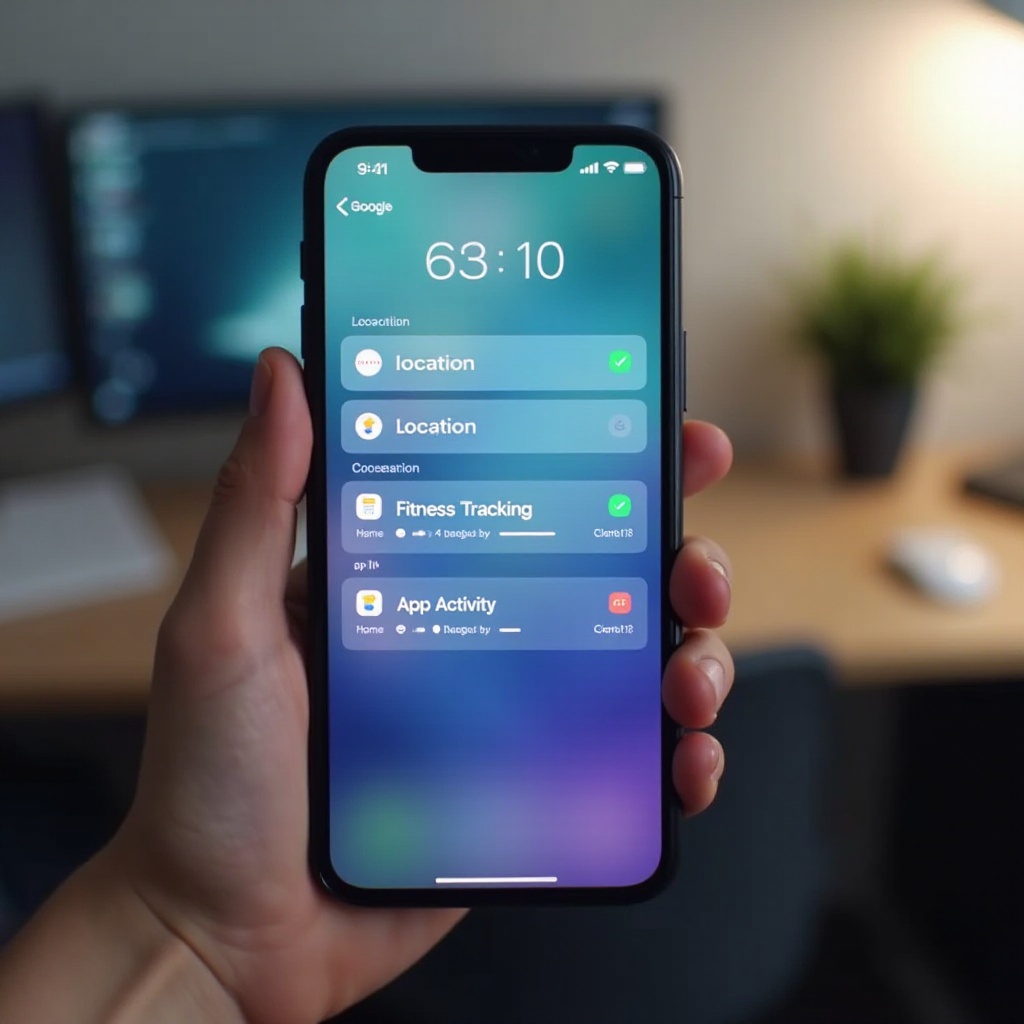
To prevent notification overload, it’s crucial to manage these alerts effectively through your iPhone’s settings.
-
Adjusting Notification Settings: Navigate to Settings > Notifications to select your preferred alert style, whether that be banners, alerts, or sounds. Customizing this for each app can help balance necessary information with minimal distraction.
-
Managing App Permissions: Dive into Settings > Privacy to view and modify app permissions. Here, revoke or adjust permissions for apps based on their necessity for accessing your personal data, enhancing your control over your privacy.
-
Turning Off Unwanted Notifications: Unwanted notifications can be disabled directly from the app’s settings or from within the notification center, allowing for a streamlined set of critical alerts.
Privacy Concerns and Security Implications
Managing tracking notifications is crucial as they reflect the level of data access apps have on your device, potentially exposing you to privacy risks. Each notification signifies a background app activity that might impact privacy or performance. For example, frequent location tracking notifications might hint at apps excessively accessing your position, which can lead to significant battery drainage and data usage.
By regularly evaluating the security practices of apps demanding data access, you can effectively mitigate these potential risks, ensuring that your personal information remains secure.
Tips for Managing iPhone Notifications Effectively
-
Using Focus Mode and Do Not Disturb: These features allow you to silence notifications temporarily, ideal for minimal disruptions during specific activities. Focus Mode enables customization of notification profiles based on various scenarios, whether you’re working, relaxing, or exercising.
-
Leveraging Screen Time for Control: Screen Time not only monitors usage patterns but also provides insights into how often notifications interrupt you. Using this information, you can regulate app alert permissions to maintain a productive and distraction-free environment.
Conclusion
iPhone tracking notifications are essential tools for transparency between you and your apps. By understanding how to manage them, you can safeguard your privacy while optimizing your iPhone usage. Regularly reviewing and adjusting your notification settings ensures you are only alerted to the most relevant activities, maintaining a secure digital environment.
Frequently Asked Questions
How do I turn off tracking notifications on my iPhone?
To turn off tracking notifications, go to Settings > Privacy > Tracking and toggle off ‘Allow Apps to Request to Track’.
Are tracking notifications a threat to my privacy?
Notifications themselves aren’t a threat but indicate that apps access your data. Regularly reviewing settings minimizes unwanted data exposure.
Can tracking notifications be beneficial?
Yes, they provide awareness of how apps access your data and location, ensuring you maintain control over personal information use.