Introduction
Bluetooth speakers offer the convenience of wireless sound along with the stable performance of an AUX connection. When the AUX connection fails, it can be both puzzling and frustrating. This guide provides you with the tools needed to diagnose and fix any AUX connectivity issues, ensuring your audio experience remains uninterrupted.
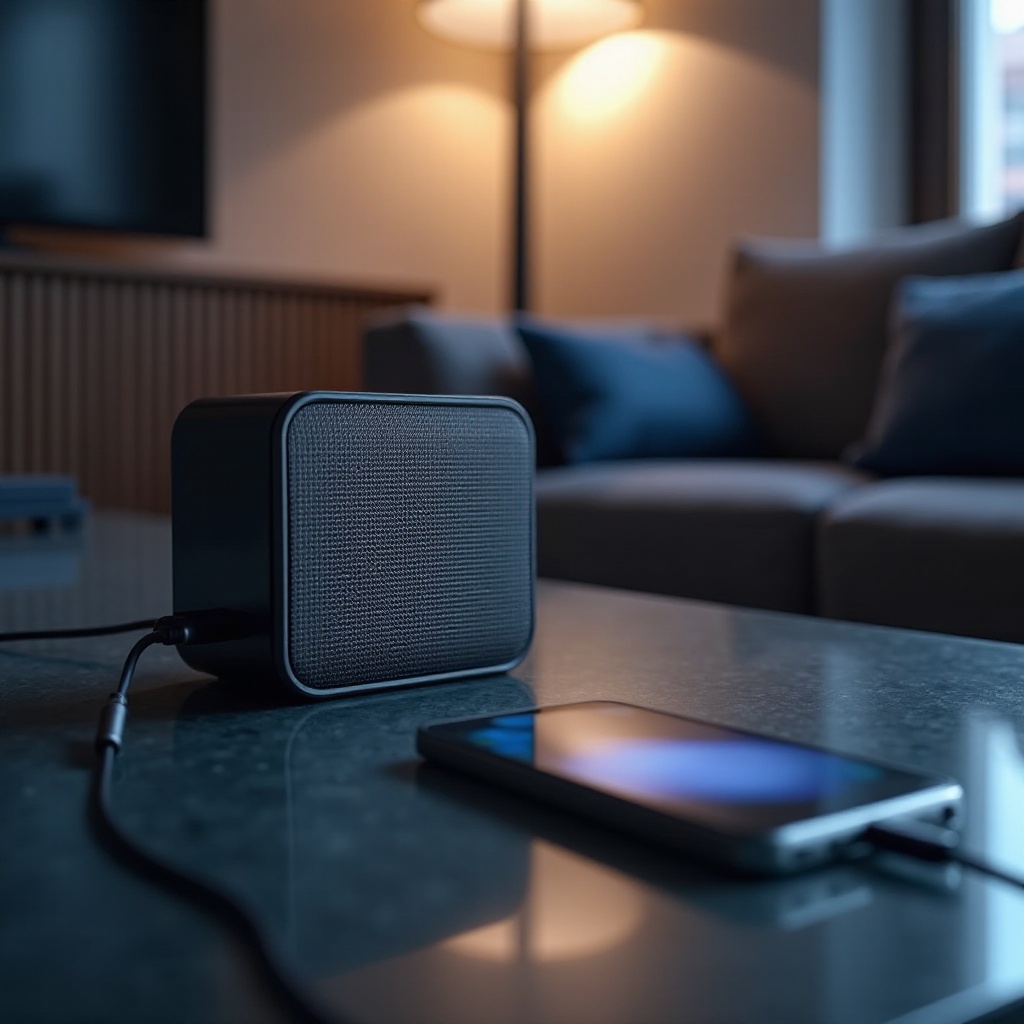
Understanding Bluetooth and AUX Connectivity
Bluetooth and AUX connectivity are essential for modern audio playback. Bluetooth allows for wireless communication, freeing you from tangled wires, while AUX cables provide a direct line connection that often results in clearer sound.
-
How Bluetooth Connects Devices: Bluetooth technology facilitates wireless connections by recognizing and pairing compatible devices. This allows for convenient control of audio playback without physical connections.
-
The Role of AUX in Audio Devices: An AUX connection offers a reliable alternative by establishing a wired link between devices. This is particularly useful in environments with heavy wireless interference, providing stable audio quality.
-
Why Bluetooth Speakers Have AUX Options: AUX ports on Bluetooth speakers enhance versatility, allowing users to switch between wireless and wired connections based on their needs and environment.
Understanding these connection types helps to identify and address any problems that might arise with your speaker.
Common Causes of AUX Connectivity Issues
AUX connectivity issues are usually rooted in a few familiar problems. Recognizing these can speed up the resolution process.
-
Hardware Malfunctions: Continuous usage can degrade physical components such as the AUX cable or the port itself, causing connection failures or intermittent audio drops.
-
Compatibility Problems: Not all devices are seamlessly compatible due to differences in software versions or hardware standards, which can lead to AUX connection issues.
-
External Interference: Electronic devices in proximity can cause interference, disrupting both wireless and wired connections, leading to poor audio quality.
Understanding these common problems can assist in pinpointing the root of the issue, making troubleshooting more efficient and accurate.
Step-by-Step Troubleshooting Guide
Addressing AUX connectivity problems involves a systematic approach. Follow these steps to identify and fix the problem:
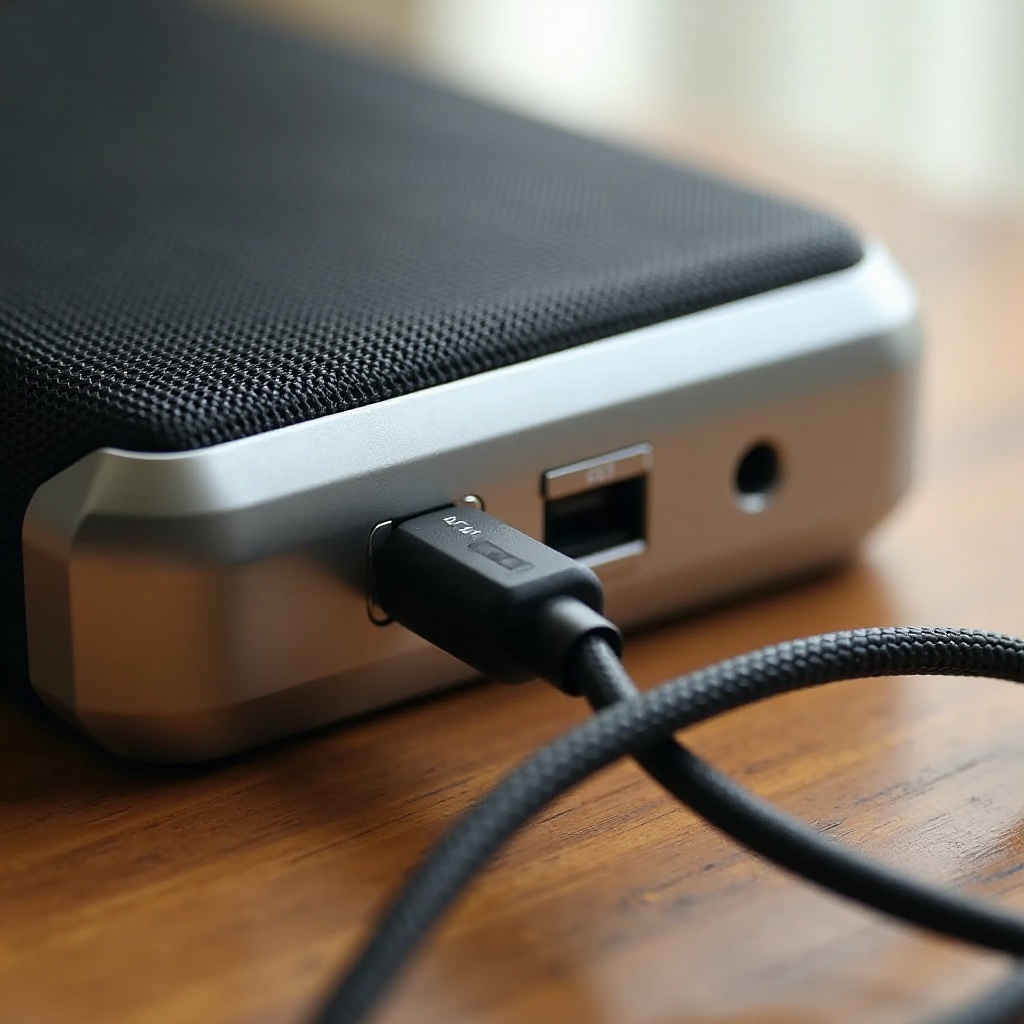
- Examine Physical Connections: Ensure that the AUX cable is fully seated in both the speaker and the audio source. Loose connections can result in audio drops or distortion.
- Test with Alternative AUX Cables and Devices: Substitute the current cable with another to verify its integrity. Likewise, connect to a different audio source to rule out device-related issues.
- Check for Software and Firmware Updates: Outdated firmware can lead to compatibility problems. Refer to your speaker’s instructions for updating procedures, and make sure your audio device’s software is up-to-date.
- Adjust Device Audio Settings: Ensure your audio device isn’t muted and that volume levels are correctly set.
Follow these steps methodically to resolve the majority of AUX connectivity issues efficiently.
Advanced Solutions for Persistent Issues
For issues that persist after initial troubleshooting, consider these advanced solutions:
-
Performing a Factory Reset: Resetting the speaker can clear up software glitches that basic troubleshooting cannot resolve. Follow the manufacturer instructions to perform a reset.
-
When to Consult Professional Repair Services: If physical damage is apparent, or if the problem persists despite troubleshooting, seek professional assistance. Experts can diagnose and repair hardware-level issues or replace defective components.
These solutions are often necessary when initial steps do not resolve the issue, indicating more complex underlying problems.
Tips to Maintain Optimal Speaker Performance
To ensure your speaker continues to perform at its best, regular maintenance and careful usage are key.
-
Regular Device Maintenance: Keep the speaker and its ports clean from dust and debris to ensure stable connections. Treat cables gently to prevent wear and damage.
-
Choosing Quality Cables and Accessories: Invest in high-quality AUX cables and compatible accessories to reduce the likelihood of connectivity issues.
Following these maintenance tips helps prolong the life of your speaker and minimize potential issues with connectivity.
Conclusion
Understanding and addressing AUX connectivity issues empowers you to enjoy continuous audio playback from your Bluetooth speaker. By following these guidelines, you will effectively diagnose and resolve any problems, maintaining the expected performance of your speaker.
Frequently Asked Questions
What should I do if my AUX port is damaged?
If your AUX port is damaged, consider using Bluetooth as an alternative. If that’s not feasible, seek professional repair to replace or fix the port.
Can software updates affect AUX functionality?
Yes, software updates can address compatibility issues affecting AUX functionality. Ensure both your speaker and audio device are running the latest software to avoid such problems.
Why does my speaker only work with Bluetooth and not AUX?
If your speaker only functions with Bluetooth, it might be due to a faulty AUX cable or port. Testing with various cables and devices can help determine the issue.